タイトル:Google ビジネス プロフィールを確認する方法 この記事は、Google ビジネス プロフィール(Google マイ ビジネス)を Momos に接続するための4部構成シリーズのパート2です。
タイトル:Google ビジネス プロフィールを確認する方法 この記事は、Google ビジネス プロフィール(Google マイ ビジネス)を Momos に接続するための4部構成シリーズのパート2です。 How to create your Google Business Profile
タイトル:Google ビジネス プロフィールを確認する方法 この記事は、Google ビジネス プロフィール(Google マイ ビジネス)を Momos に接続するための4部構成シリーズのパート2です。
タイトル:Google ビジネス プロフィールを確認する方法 この記事は、Google ビジネス プロフィール(Google マイ ビジネス)を Momos に接続するための4部構成シリーズのパート2です。 How to claim your Google Business Profile
タイトル:Google ビジネス プロフィールを確認する方法 この記事は、Google ビジネス プロフィール(Google マイ ビジネス)を Momos に接続するための4部構成シリーズのパート2です。 How to connect your Google Business Profile
タイトル:Google ビジネス プロフィールを確認する方法 この記事は、Google ビジネス プロフィール(Google マイ ビジネス)を Momos に接続するための4部構成シリーズのパート2です。
タイトル:Google ビジネス プロフィールを確認する方法 この記事は、Google ビジネス プロフィール(Google マイ ビジネス)を Momos に接続するための4部構成シリーズのパート2です。
以下のリンクをクリックして他の記事をご覧ください
1:Google ビジネス プロフィールの作成方法 2:Google ビジネス プロフィールの確認方法(現在のページ) 3:Google ビジネス プロフィールのオーナー確認申請方法 4:Google ビジネス プロフィールの接続方法。 Business Profile Manager

確認の目的はシンプルです
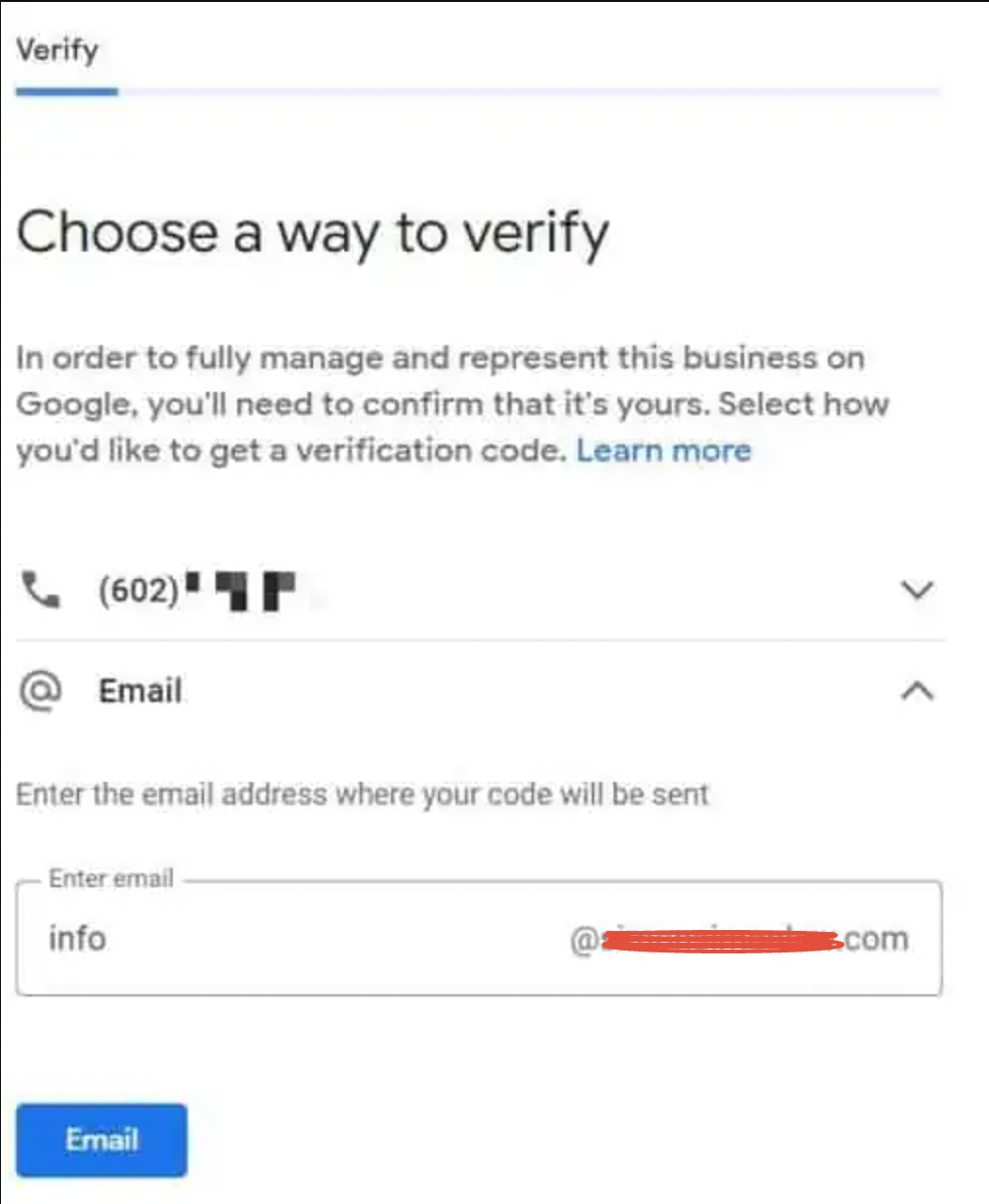
Important: Make sure you have access to the email address on the verification page.
- Open your Google Business Profile.
- Choose the location to verify (if multiple locations).
- Click Get Verified.
- Select the Email option.
- Enter the email address.
- Find the Google Business Profile email; it has your code and activation link.
Phone
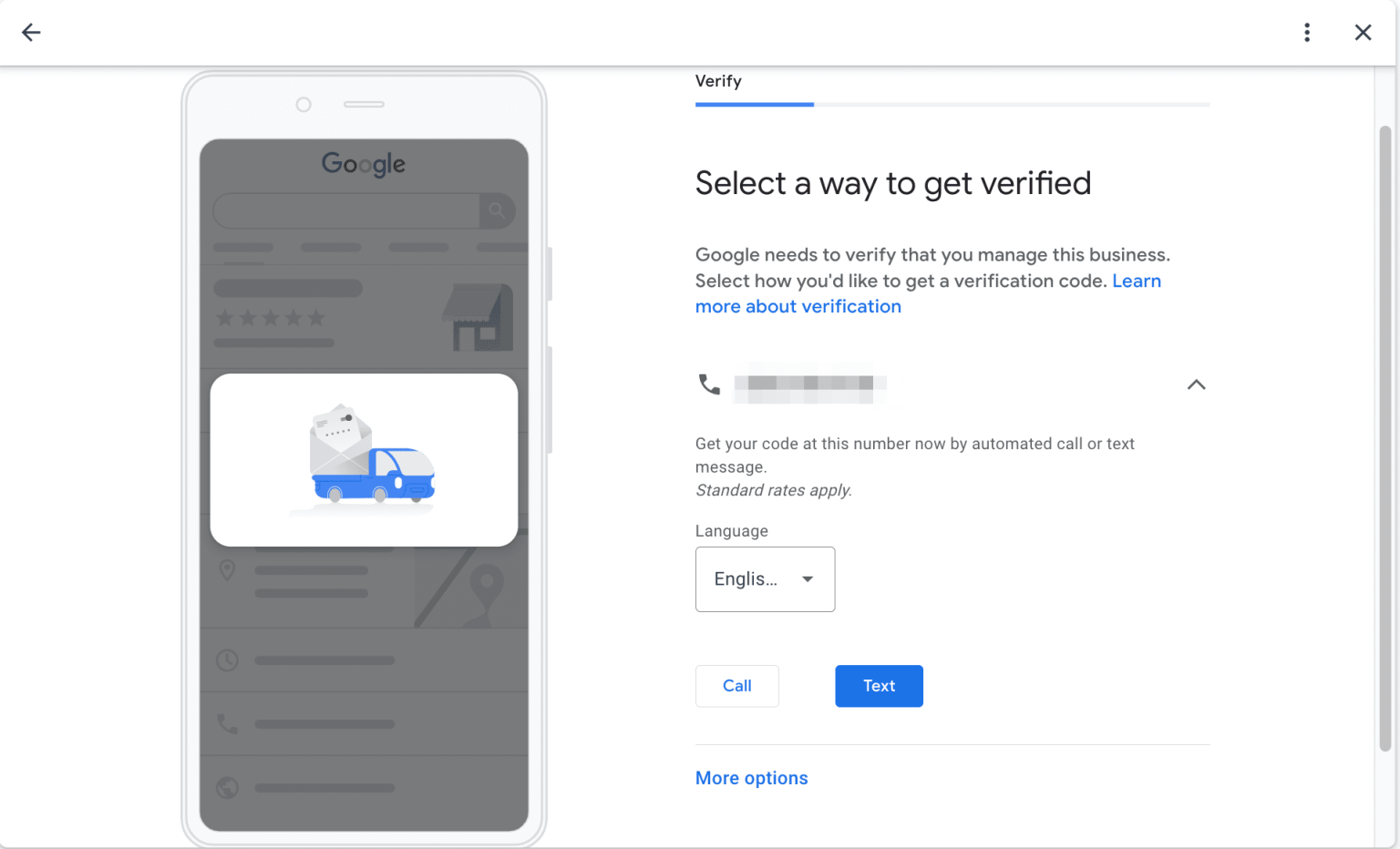
Important: The number must be reachable for calls and text messages.
- Open your Google Business Profile.
- Choose the location you wish to verify (if multiple locations).
- Click Get Verified.
- Choose language.
- Select the preferred verification method: Phone or SMS.
- Answer the call or open the SMS to get the code.
- Google will send you a code. Enter this in the code field.
Video recording (mobile)
Important: If available, video verification is recommended, as it thoroughly confirms access to your business address. Ensure you have the store’s opening hours and clear exterior photos from multiple angles ready.
Live video call
Live video verification is one of the methods Google provides to confirm your access to the business location you are claiming. It may not be available for all businesses, but if it is, this option is recommended.
Step 1: Prepare for the Call
Use a device that supports live video calls.
Be at your business location so you can show proof of ownership. Examples include:
Business location: Show outdoor signage, nearby businesses, or a street sign.
Business or equipment: Show products, branded tools, marketing materials, or equipment used to serve customers.
Proof of management: Show employee-only areas, a cash register, kitchen, storage room, or non-sensitive documents. Unlocking doors with your keys also demonstrates access.
Step 2: Start the Call
Sign in to your Google Business Profile.
Select Get Verified → Live Video Call → Next.
Choose your preferred language.
Select Start Call to begin a text chat with Google Support.
Step 3: Verification During the Call
When a support representative is ready, they will guide you through the live video call.
Use your device’s camera to clearly show your location and ownership proof.
Tip: Live video calls are only available during your business hours. If this option isn’t available or doesn’t work, try another verification method or contact Google Support for assistance.
Postcard verification is one of the methods Google offers to confirm your business location. It may not be available for all businesses, but if it is, this method requires entering a code mailed to your business address.
Step 1: Request a Verification Code
Sign in to your Google Business Profile.
Select Get Verified → Postcard.
Confirm that your mailing address is correct.
Request the code.
Tip: Most codes arrive within 14 days.
Step 2: Wait for the Postcard
Do not edit your business name, address, or category during this time, as the code will no longer work.
Do not request a new code until the first one expires. Requesting again invalidates the original code and makes the process longer.
Verification codes expire after 30 days.
Step 3: Enter Your Code
Once the postcard arrives in the mail:
Sign in to your Google Business Profile.
Enter the 5-digit verification code in the Code field.
Select Submit to complete verification.
⚠️ Important:
Keep your verification code secure.
Google will never ask for your code.
Do not share the verification code with anyone, even with those who manage your profile.
ステップ1
ビジネスの確認が必要かどうかを確認する。
ステップ2
確認方法を選択する。
動画録画(モバイル)
利用可能な場合は、動画による確認が推奨されます。 How to Connect your Google Business Profile
この記事は役に立ちましたか?
それは素晴らしい!
フィードバックありがとうございます
お役に立てず申し訳ございません!
フィードバックありがとうございます
フィードバックを送信しました
記事の改善におけるご協力ありがとうございます。